
TRANCE GAIN KNOB — Free Gain Knob Utility Plugin VST3 for Trance
Clean, transparent gain staging. One plugin, zero cost.
TRANCE GAIN by OMAR G2 is a free, ultra-transparent gain utility built to solve one problem and solve it perfectly: adjusting levels without colouring the signal. Place it anywhere in your chain, dial in the exact level you need, and move on. It’s the “gain that does nothing” — but does it at studio grade.
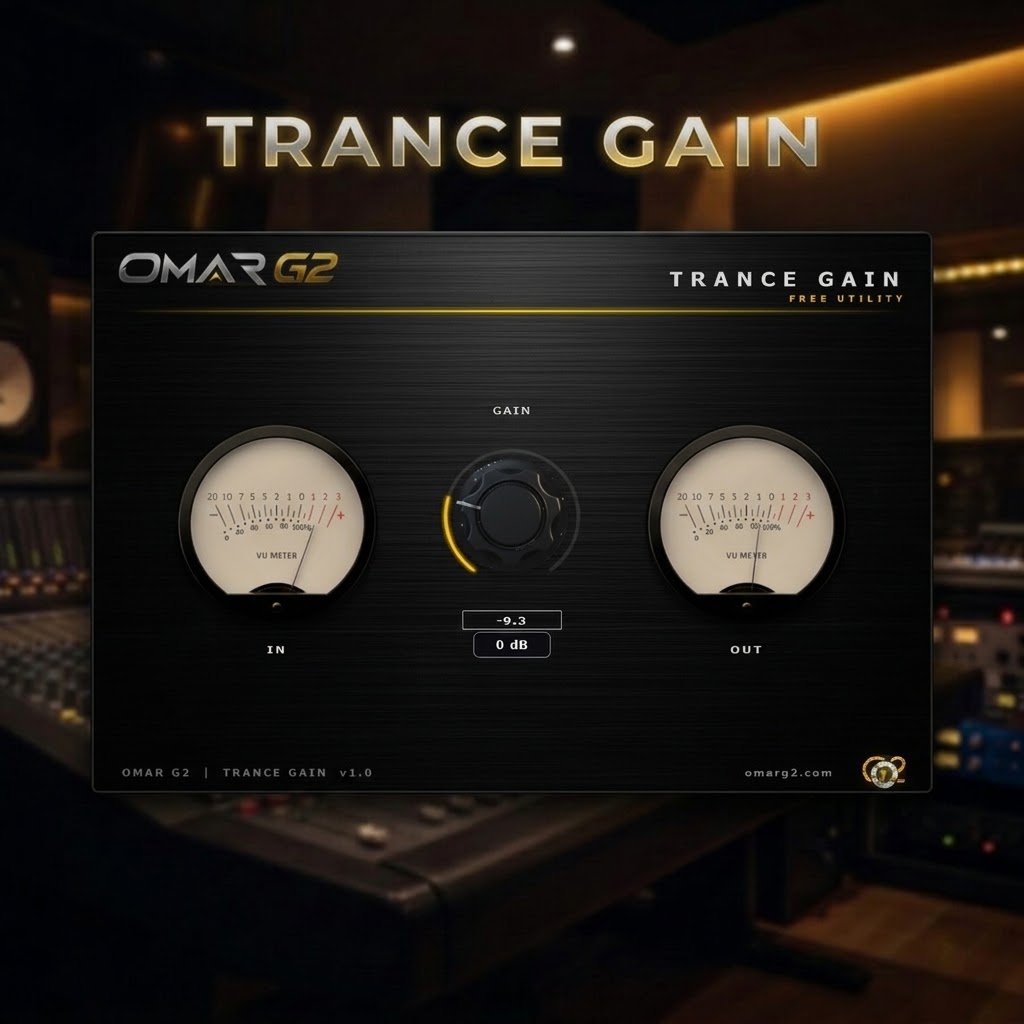
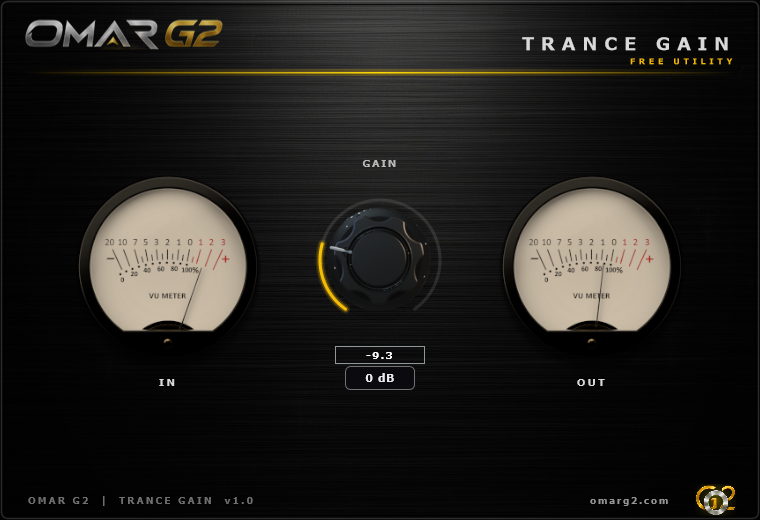
With just one knob — GAIN — flanked by calibrated IN and OUT VU meters and a single-click “0 dB” reset, TRANCE GAIN is the fastest way to gain stage any track, bus or stem. No menus, no presets, no hidden options. Load it, set it, done.
DOWNLOAD FREE
TRANCE GAIN is completely free. No demo limitations, no time-limited trial, no functionality locked behind a license. You get the full plugin — period. Just complete the free checkout below and you’ll receive the download link by email instantly. By completing the checkout and downloading the plugin, you agree to receive occasional product updates and special offers from Omar G2. You can unsubscribe at any time.
SHA-256 CHECKSUM
552fce491430642cb95c0e003238f41b13ce9123ae9aae346546f0747c2422da
Verify the integrity of TranceGain-v1.0.0.zip by comparing this code with the one you get after downloading. If they match, the file is correct.
How to verify the SHA-256 on Windows
Option A — PowerShell (recommended):
Get-FileHash "$env:USERPROFILE\Downloads\TranceGain-v1.0.0.zip" -Algorithm SHA256
Option B — Command Prompt (CMD):
certutil -hashfile "%USERPROFILE%\Downloads\TranceGain-v1.0.0.zip" SHA256
Option C — 7-Zip / WinRAR:
Right-click the .zip → CRC SHA → SHA-256 (7-Zip) or File Properties → Checksums (WinRAR).
The output is case-insensitive. Ignore spaces and line breaks when comparing.
VST3 · Windows 10/11 64-bit · ~4 MB · Free forever
WHY TRANCE GAIN KNOB?
Most utility plugins on the market try to be everything at once — gain plus saturation plus a bit of EQ plus a “console emulation” you never asked for. TRANCE GAIN takes the opposite approach: it does one thing, perfectly. It’s a clean, calibrated, transparent gain utility designed for producers who already have their character plugins and just need to fix the levels.
- Perfectly transparent — no saturation, no filters, no colouration. What goes in comes out, just louder or quieter.
- One knob, total control — from −20 dB to +24 dB, with 0.1 dB precision. More range than most DAW faders.
- Dual VU meters — IN on the left, OUT on the right, both with a −40 to 0 dB scale. You see exactly what enters and what leaves.
- Single-click “0 dB” reset — the fastest way to return to unity when you’ve been pushing gain around.
- Bypass on the logo — click the OG2 logo in the footer to A/B the processing instantly. Gold = active, red = bypassed.
- Free forever — no demo, no trial, no license, no time limit. The full plugin, at 0 USD.
- Zero CPU — it’s just a multiply. You can load it on every channel of a full session without noticing.
WHAT IT DOES
TRANCE GAIN is a single-stage gain utility. Its purpose is simple: it changes the level of your signal with total transparency, and it shows you the level on both sides.
GAIN — Transparent Gain
The GAIN knob controls the level of the signal passing through the plugin, from −20 dB to +24 dB. It’s smoothed to avoid zipper noise and fully automatable in your DAW. Push it to bring quiet sources up, pull it down to tame hot mixes. There is no saturation stage, no soft clip, no filter — the signal leaves exactly as it entered, multiplied by the gain factor.
IN / OUT VU METERS
Two calibrated VU meters flank the GAIN knob: IN on the left, OUT on the right. Both use a −40 dB to 0 dB scale with smooth ballistics, so you can see at a glance how much gain you’re adding and whether you’re approaching clipping. The OUT meter reflects exactly what the plugin is sending forward — useful for spotting when a “transparent” gain boost is actually pushing your chain too hot.
0 dB RESET
A dedicated “0 dB” button below the knob instantly returns the GAIN parameter to unity. When you’ve been riding the knob around for a while and lose track of where unity is, one click resets you to 0 dB. No dragging, no automation surgery.
WHERE TO USE IT IN YOUR DAW
TRANCE GAIN is designed to be used anywhere you’d reach for a fader — but with the advantage of being placeable inside your effect chain, not just at the end. Common spots include:
Source → TRANCE GAIN → EQ → Compressor → Sat → ... (pre-chain staging)
Source → EQ → Compressor → TRANCE GAIN → ... (post-chain trim)
Source → ... processing ... → TRANCE GAIN → Output (final trim)
Here are real examples of where to insert it in your project:
- Before a saturator or clipper — control how hard you hit the next stage without touching the source fader. INPUT knob becomes your “drive” for the saturator.
- After a compressor — trim the output back to the level you want before the next plugin. Compressors often change the level; TRANCE GAIN restores it cleanly.
- On a parallel chain — trim the return level of a parallel compression or parallel saturation chain with 0.1 dB precision.
- On a send/return — match the level of a reverb or delay return against the dry signal without touching the DAW return fader.
- Between two plugins that disagree — some plugins boost, others attenuate. Put TRANCE GAIN between them and restore the level you intended.
- On a stem bus — trim all stems to match before your final mix stage. The dual VU meters show you exactly where they stand.
- On the master — final output trim after your mastering chain, before you hit bounce. Simple, transparent, repeatable.
Rule of thumb: if you’re about to reach for a utility gain plugin in your DAW, use TRANCE GAIN instead — you get the same result with better visual feedback and no risk of accidentally changing a fader that’s tied to your mix automation.
THE CLEAN CHARACTER
TRANCE GAIN has no character. That’s the point.
Most “utility” plugins in the audio world quietly add colour — a tiny bit of saturation here, a subtle filter there, a “warmth” algorithm you didn’t ask for. TRANCE GAIN does none of that. The signal path is a single smoothed multiply. There is no triode curve, no console emulation, no soft clip at the output. What you send in comes out at exactly the gain you dialed in, and nothing else.
Why this matters:
- You keep full control of your tone — all colour decisions stay with your character plugins, not with the utility.
- You can A/B honestly — the bypass on the logo gives you a true reference, because there’s no hidden character difference between on and off.
- You can use it anywhere — it’s safe on the master bus, on a stem, on a parallel chain, on a vocal. It won’t add anything you didn’t ask for.
- It ages well — a clean gain utility doesn’t become outdated when fashions in saturation change. It’s a tool, not a flavour.
WHEN TO USE IT — REAL USE CASES
TRANCE GAIN is intentionally minimal, but it earns its place in the chain in a surprising number of situations. Here are the ones producers tell us they use most:
Pre-saturation staging
Character: Control how hard you hit the next plugin without touching your mix fader.
Suggested settings: GAIN to taste (typically +3 to +12 dB before a saturator).
Best for:
- Feeding a clipper or limiter — precise control over how much you push the next stage.
- Driving a tape or tube emulation — the GAIN knob becomes your “drive” without needing the emulation to have its own input trim.
- Taming a hot source before a saturator — pull it down to avoid slam-clipping a source you don’t want destroyed.
Post-compression trim
Character: Restore the level that a compressor changed, without colouring the compressed signal.
Suggested settings: GAIN to match bypass level (typically −6 to +6 dB, watch the OUT meter).
Best for:
- After a bus compressor — trim the compressed bus back to unity so your next plugin sees the same level it would have without the compressor.
- After a vocal compressor — restore the vocal level so automation decisions remain consistent.
- After a parallel compression chain — trim the return level without touching the compressor’s make-up gain.
Parallel chain level matching
Character: Balance a parallel chain against the dry signal with 0.1 dB precision.
Suggested settings: Start at 0 dB, adjust to taste watching the OUT meter against the dry signal.
Best for:
- Parallel compression — trim the return so the compressed signal blends with the dry exactly as you want.
- Parallel saturation — trim the saturated return against the clean path.
- Reverb and delay returns — match the wet level to the dry level on the bus.
Master output trim
Character: Final transparent trim on the master, before bounce, with a clean A/B reference.
Suggested settings: GAIN to taste, typically −3 to +3 dB, watch the OUT meter.
Best for:
- Final mix trim — after your mastering chain, set the exact output level you want to bounce.
- Stem matching — trim each stem to the same level before final mix.
- A/B testing — click the logo to bypass instantly, compare gain changes against the unprocessed signal.
HOW TO USE IT
TRANCE GAIN is about as simple as a plugin gets. Here’s the entire workflow:
- Insert TRANCE GAIN wherever you need to adjust gain.
- Turn the GAIN knob until the OUT meter shows the level you want.
- Watch the IN meter to see what’s entering the plugin — useful for spotting hot sources before they hit the next stage.
- Click the logo in the footer to A/B against bypass (gold = active, red = bypassed).
- Click “0 dB” to instantly return to unity if you’ve been riding the knob.
- Automate GAIN in your DAW if you want dynamic level changes over time — it’s a standard automatable parameter.
KEY FEATURES
- Single transparent GAIN stage — from −20 dB to +24 dB, 0.1 dB precision
- Dual VU meters — IN and OUT, −40 dB to 0 dB scale, smooth ballistics
- “0 dB” reset button — instant return to unity
- Bypass on the logo — click the OG2 logo to A/B instantly, gold/red indicator
- Smoothed gain changes — no zipper noise, no clicks when automating
- Full automation — every parameter automatable in your DAW
- Persistent bypass — saved with your project, restores on reload
- Zero CPU overhead — safe to load on every channel of a full session
- Compact horizontal interface — 760 × 520, designed for fast workflow
- Free forever — no demo, no license, no time limit. The full plugin.
DESIGNED FOR TRANCE PRODUCERS
TRANCE GAIN was built by a trance producer, for trance producers. Every decision — the range, the meter scale, the horizontal layout, the zero-friction workflow — was tuned for the specific gain staging challenges of modern trance production.
Use it on:
- Uplifting trance — clean gain staging for supersaws, plucks and layered leads.
- Psytrance — precise level control for rolling basslines and stacked leads, without colouring the tight low end.
- Progressive trance — transparent trims on pads, textures and the mix bus.
- Tech trance — fast A/B gain matching for drums, stabs and FX chains.
Whether you’re producing a peak-time banger or an emotional breakdown, TRANCE GAIN gives you the transparent control you need to keep the mix honest.
OMAR G2 — Peak-Time Emotional Energy. Classic Trance, Recharged.
ALREADY DOWNLOADED?
If you’ve already picked up TRANCE GAIN, you know the drill: place it where you need a transparent gain trim, dial the level, and move on. If you’re looking for the same precision but with analog character, check out TRANCE PREAMP — the paid preamp version of the same philosophy, with a triode-inspired saturation stage and 47 trance presets.
Analog character · 47 presets · Paid license
INSTALLATION GUIDE
TRANCE GAIN is delivered as a ZIP file containing the VST3 plugin. No external libraries or additional files are required — everything is bundled inside the plugin.
Step 1 — Download
Download TranceGain-v1.0.0.zip from the free download link sent to your email after checkout.
Step 2 — Extract the ZIP file
Right-click the ZIP and choose Extract All… (Windows built-in), 7-Zip or WinRAR. Inside you will find:
Trance Gain.vst3
Step 3 — Copy the plugin to the VST3 folder
Copy the Trance Gain.vst3 folder into:
C:\Program Files\Common Files\VST3
Approve the administrator prompt if Windows asks. That’s it — no DLL, no installer, no dependencies.
Step 4 — Open your DAW
Launch your DAW and run a plugin rescan / refresh the VST3 list if needed.
Step 5 — Load TRANCE GAIN and go
Find TRANCE GAIN in your DAW’s VST3 browser, load it on any track, and start gain staging. It’s ready immediately — no activation, no license, no setup.
IMPORTANT NOTES
- Designed for Windows 10/11 64-bit, VST3 format only.
- Requires a VST3-compatible DAW (Ableton Live, FL Studio, Cubase, Studio One, Reaper, Bitwig, etc.).
- No external DLLs or runtimes are required — all dependencies are built into the plugin.
- Your DAW may need to rescan plugins after installation.
- If the plugin doesn’t appear, verify the
Trance Gain.vst3folder is placed insideC:\Program Files\Common Files\VST3. - TRANCE GAIN is free. There is no paid tier, no upgrade, no “pro” version — this is the full plugin.
SUPPORT
TRANCE GAIN is free, but support is real. If you have any issue installing or using the plugin, write to hello@omarg2.com and we’ll get back to you within 24 hours.
If you find TRANCE GAIN useful, tell other producers — the best way to support a free plugin is to share it.



Reviews
There are no reviews yet.