
TRANCE METER — Free Frequency Spectrum Analyzer VST3, AU (Logic) & Linux
See what your mix is really doing. Spectrum, loudness, and correlation, in one plugin.
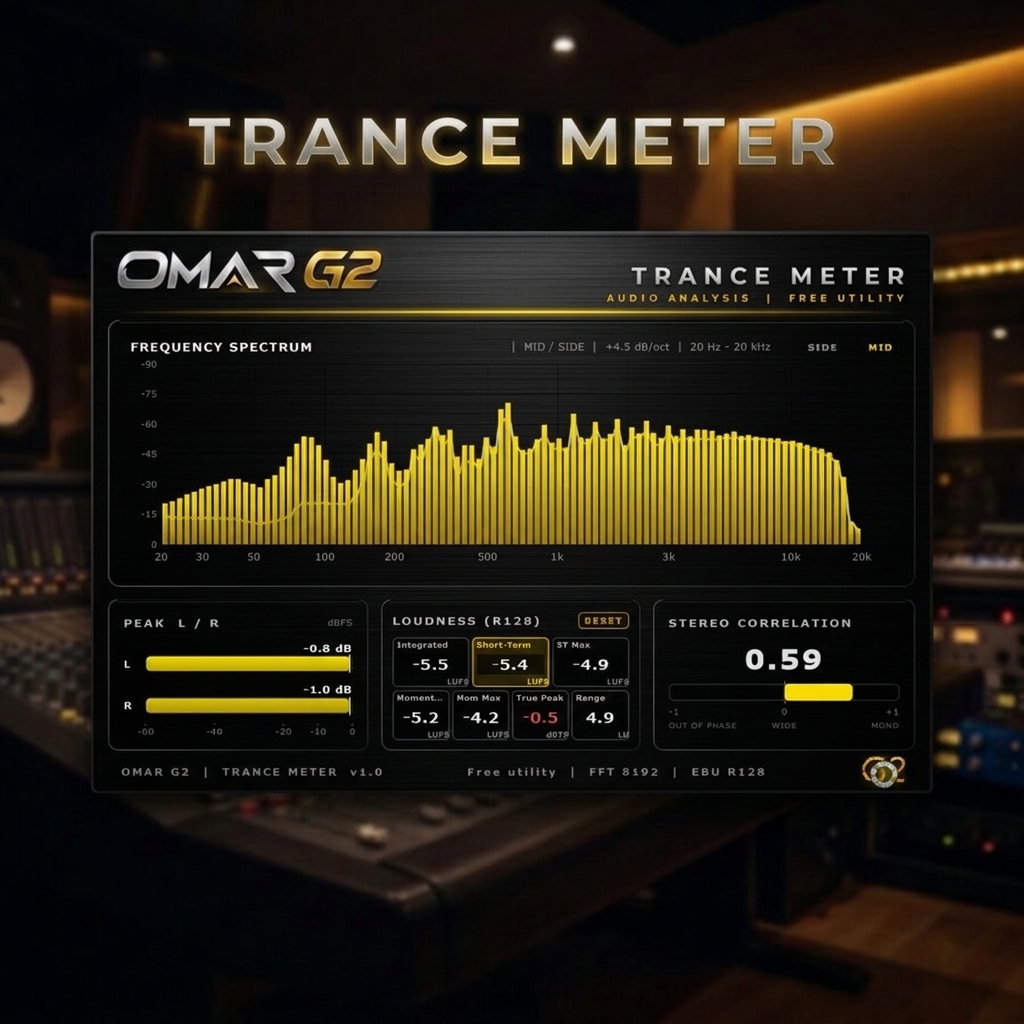
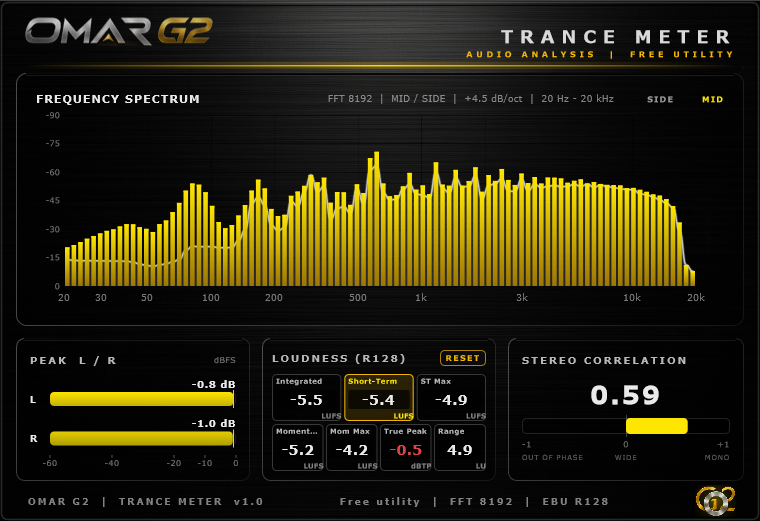
TRANCE METER by OMAR G2 is a free audio analysis plugin built for trance producers who need to see the truth about their mix. It combines a high-resolution FFT spectrum (Mid/Side), calibrated EBU R128 loudness meters, and a smoothed stereo correlation display in a single, low-CPU plugin. No tabs, no menus, no subscriptions — just the views that matter, always visible.
Whether you’re checking whether your supersaw has collapsed to mono, verifying that your master isn’t clipping before bounce, or making sure your kick and bass are sitting perfectly in the center, TRANCE METER gives you the answer in one glance. And it costs nothing.
DOWNLOAD FREE — 4 PLATFORMS
TRANCE METER is completely free. No demo limitations, no time-limited trial, no functionality locked behind a license. You get the full plugin — period. Just complete the free checkout (0 USD) below and you’ll receive an email with the download links for all four versions instantly. Download the one that matches your operating system. By completing the checkout and downloading the plugin, you agree to receive occasional product updates and special offers from Omar G2. You can unsubscribe at any time.
 Windows VST3
 macOS VST3
 Linux VST3
VST3 · AU (Logic) · Linux · Free forever · No signup required
WHY TRANCE METER?
Most free analyzers on the market are either abandoned projects, ugly developer tools, or bloated “everything” plugins with a dozen panels you never use. TRANCE METER takes the opposite approach: three essential views, done right. It’s the analysis plugin a trance producer actually needs, built by a trance producer, with the same visual language as the rest of the Omar G2 family.
- FFT spectrum (Mid/Side) — 96 logarithmic bands from 20 Hz to Nyquist. Gold bars for the Mid (center) and a smooth grey area for the Side (stereo width).
- EBU R128 Loudness — Integrated, Short-Term, Momentary, True Peak (dBTP), and Loudness Range (LRA). The exact metrics you need for modern streaming standards.
- Stereo correlation display — from −1 (out of phase) to +1 (mono), smoothed so it doesn’t jitter. The fastest way to check your supersaws.
- Low CPU — one FFT every 1024 samples, published through a double buffer so the GUI never blocks the audio thread.
- Zero audio processing — it does not colour, limit, or touch your audio in any way. It only measures.
- Same visual family as the rest of Omar G2 — the metal skin, gold accents, and typography match Trance Preamp and Trance Gain.
- Free forever — no demo, no trial, no license, no time limit. The full plugin, at 0 USD.
- Multi-platform — Windows (VST3), macOS (VST3 + AU for Logic Pro) and Linux (VST3).
WHAT IT DOES
TRANCE METER is an analysis-only plugin. It receives stereo audio, computes the statistics below in real time, and displays them. It does not modify the audio in any way — you can leave it at the end of your chain permanently.
FFT SPECTRUM (MID & SIDE)
A high-resolution FFT with 8192-point windows, aggregated into 96 logarithmic bands from 20 Hz to Nyquist. The display uses a Hann window with smooth ballistics: fast attack and slow release so you can read both the transient and the average of the signal.
The gold bars represent the Mid (the mono sum of L+R), while the grey overlay represents the Side (the difference between L and R). If the grey area disappears in the low end, your bass is perfectly mono. If it’s huge in the highs, your supersaws are wide.
EBU R128 LOUDNESS METERS
Compliant with ITU-R BS.1770-4 and EBU R128 standards. The plugin calculates:
- Integrated: The overall loudness of your track with gating (-70 LUFS absolute, -10 LU relative).
- Short-Term: A 3-second sliding window, perfect for checking the loudness of a drop or a breakdown.
- Short-Term Max: The highest Short-Term value reached.
- Momentary: A 400ms window to catch sudden spikes.
- Momentary Max: The highest momentary peak.
- True Peak (dBTP): 4x oversampled peak detection to catch inter-sample peaks before they clip your DAC.
- Loudness Range (LRA): The difference between the 10th and 95th percentiles of the Short-Term history, showing you the dynamic range of your track.
STEREO CORRELATION
A bipolar display from −1 (fully out of phase) to +1 (fully mono), with a large numeric readout. Values above 0 are shown in gold (safe). Values below 0 are shown in red (potential mono-compatibility problem). The correlation is smoothed to give you a stable reading of your stereo width.
HOW TO USE CORRELATION TO CHECK YOUR SUPERSAW WIDTH
This is the single most useful thing TRANCE METER does for a trance producer, and the reason most people install it. Here’s the exact workflow.
Step 1 — Insert TRANCE METER on your supersaw bus
Put it at the end of the chain, after all the layering, EQ, saturation, and reverb. This way the meter reads what actually leaves your bus — the signal the rest of the mix hears.
Step 2 — Read the correlation value while the supersaw is playing
Solo the supersaw bus and play the loudest, most layered section of your track — usually the drop or the climax. Watch the correlation display.
- Correlation between +0.6 and +1.0 — The supersaw is well correlated. It will translate to mono (clubs, phones) without phase cancellation. Leave it alone.
- Correlation between +0.2 and +0.6 — The supersaw is wide but still mono-safe. This is the sweet spot for trance leads.
- Correlation between −0.2 and +0.2 — The supersaw is very wide, borderline out of phase. It sounds spectacular in stereo but may partially disappear on a club mono system.
- Correlation below −0.2 — The supersaw is out of phase. It will sound thin, washed out, or hollow in mono, and it will fight your kick and bass. Fix it now.
Step 3 — Fix it if the correlation is too low
If your supersaw is reading below +0.2, you have four tools to fix it, in order of preference:
- Narrow the stereo width of one layer. Bring one or two of your detuned saws closer to the center or leave them mono.
- Reduce or narrow the reverb. A wide stereo reverb on a wide supersaw will push the correlation to negative.
- Add a mono anchor. Add a pure mono layer (a sine or a saw an octave below) to the supersaw stack. A 15–20% mono layer will pull the correlation up by +0.2 or more.
- Use a stereo width plugin cautiously. If the correlation drops when you enable the plugin, it’s making the problem worse.
WHERE TO USE IT IN YOUR DAW
TRANCE METER is a measurement plugin, so the only rule is: put it where you want to see. Common setups:
Master bus (end of chain) → TRANCE METER           (check the whole mix)
Supersaw bus → TRANCE METER                        (check stereo width)
Kick + bass group → TRANCE METER                   (check low-end mono compatibility)
Pre-master → TRANCE METER                          (check True Peak before limiter)
Individual track (temporarily) → TRANCE METER      (diagnose a specific sound)
THE DESIGN
TRANCE METER was designed to feel like a piece of hardware on your desk, not a developer tool. The interface uses the same visual language as Trance Preamp and Trance Gain: dark metal background, gold accents, clean typography. The spectrum uses gold bars for the Mid and a smooth grey area for the Side. The correlation display uses gold for correlated signals and red for out-of-phase ones. The layout is fixed at 760 × 480, designed to be compact enough to leave on a second monitor but large enough to read the LUFS numbers clearly.
KEY FEATURES
- FFT Spectrum — 8192-point FFT, 96 logarithmic bands, Mid (gold bars) and Side (grey area).
- EBU R128 Loudness — Integrated, Short-Term, Short-Term Max, Momentary, Momentary Max, True Peak, and LRA.
- Stereo Correlation — Bipolar display with smoothing and red/gold color coding.
- Low CPU — one FFT every 1024 samples, published through a double buffer.
- Zero audio processing — it does not colour, limit, or touch your audio.
- Compact horizontal interface — 760 × 480.
- Same visual family as Preamp and Gain — metal skin, gold accents, same typography.
- Free forever — no demo, no license, no time limit.
- Multi-platform — Windows (VST3), macOS (VST3 + AU for Logic Pro) and Linux (VST3).
DESIGNED FOR TRANCE PRODUCERS
TRANCE METER was built by a trance producer for trance producers. Every decision — the correlation smoothing, the Mid/Side spectrum overlay, the EBU R128 gating, the color coding — was tuned for the specific analysis tasks of modern trance production.
Use it for:
- Uplifting trance — verify that your supersaws translate to mono and that your kick + bass are not fighting.
- Psytrance — check the low-end mono compatibility of your rolling basslines and acid layers.
- Progressive trance — verify the spectral balance of your pads and atmospheric textures.
- Tech trance — diagnose which layer is eating the headroom and why the master is peaking at −3 dBFS.
Whether you’re mixing a peak-time banger or an emotional breakdown, TRANCE METER gives you the information you need to make the right call.
OMAR G2 — Peak-Time Emotional Energy. Classic Trance, Recharged.
ALREADY DOWNLOADED?
If you’ve already picked up TRANCE METER, you know the drill: insert it where you need to see, and let the readouts tell you the truth. If you’re looking for more from the Omar G2 family, check out TRANCE PREAMP for analog character and TRANCE GAIN for clean, transparent gain staging.
Analog preamp · Free gain utility · Free analyzer
INSTALLATION GUIDE
TRANCE METER is delivered as ZIP files containing the plugin. No external libraries or additional files are required — everything is bundled inside the plugin. After the free checkout you’ll receive an email with links to all four ZIPs; download the one for your system. Jump to your platform: Windows · macOS VST3 · macOS AU (Logic Pro) · Linux
Important: a .vst3 plugin is a folder (on macOS it looks like a single file in Finder). Always copy the entire Trance Meter.vst3, and never place it inside another folder.
TRANCE METER is developed independently. Code-signing and notarization require paying a yearly fee to Apple and Microsoft, and we prefer to keep TRANCE METER free rather than pass that cost on. As a result, the plugin is unsigned, and macOS and Windows may report it as damaged or from an unknown publisher. It is not damaged. The steps below take less than a minute and only need to be done once.
WINDOWS (VST3)
Step 1 — Unblock and extract. Right-click TranceMeter-Windows.zip, choose Properties, tick Unblock if the checkbox appears, and click OK. Then right-click the ZIP and choose Extract All… (or use 7-Zip / WinRAR). If Windows shows “Windows protected your PC” (SmartScreen), click More info and then Run anyway / Keep.
Step 2 — Copy the plugin. The ZIP contains the folder Trance Meter.vst3. Copy that whole folder into:
C:\Program Files\Common Files\VST3
Approve the administrator prompt if Windows asks. The result must be C:\Program Files\Common Files\VST3\Trance Meter.vst3\... with no extra folder in between. No DLL, no installer, no dependencies.
Step 3 — Rescan the plugins in your DAW (see “Open your DAW” below).
macOS (VST3)
Step 1 — Extract. Double-click TranceMeter-Mac-VST3.zip. It contains Trance Meter.vst3.
Step 2 — Copy the plugin. In Finder, choose Go → Go to Folder…, paste the path below, and drag Trance Meter.vst3 into it:
/Library/Audio/Plug-Ins/VST3/
Step 3 — Remove the macOS quarantine flag. Open the Terminal app, paste this command, press Enter and type your Mac password if asked (nothing appears while typing, that’s normal):
sudo xattr -dr com.apple.quarantine "/Library/Audio/Plug-Ins/VST3/Trance Meter.vst3"
Step 4 — Rescan the plugins in your DAW.
macOS (AU for Logic Pro)
Step 1 — Extract. Double-click TranceMeter-Mac-AU.zip. It contains the folder Trance Meter.component.
Step 2 — Copy the plugin. In Finder, choose Go → Go to Folder…, paste the path below, and drag Trance Meter.component into it:
/Library/Audio/Plug-Ins/Components/
Step 3 — Remove the macOS quarantine flag. Open Terminal and run:
sudo xattr -dr com.apple.quarantine "/Library/Audio/Plug-Ins/Components/Trance Meter.component"
Step 4 — Open Logic Pro. Logic validates new plugins on launch. If it doesn’t appear, go to Logic Pro → Settings → Plug-In Manager, select Trance Meter and click Reset & Rescan Selection. You’ll find it under Audio FX → Audio Units → OMAR G2.
Tip for macOS Sequoia / Sonoma: if the plugin is still blocked, open System Settings → Privacy & Security, scroll down and click Open Anyway next to the Trance Meter message, then restart your DAW.
LINUX (VST3)
Step 1 — Extract. Extract TranceMeter-Linux.zip with your file manager, or open a terminal in the download folder and run unzip TranceMeter-Linux.zip. It contains the folder Trance Meter.vst3.
Step 2 — Install it for your user. From the folder where you extracted it, run:
mkdir -p ~/.vst3
cp -r "Trance Meter.vst3" ~/.vst3/
Optional, for all users of the machine: sudo cp -r "Trance Meter.vst3" /usr/lib/vst3/
Step 3 — Rescan the plugins in your DAW (Reaper, Bitwig, Ardour, etc.).
OPEN YOUR DAW
Launch your DAW and run a plugin rescan / refresh the list. Find TRANCE METER in your DAW’s plugin browser, load it on any track or on the master bus, and start analyzing. It’s ready immediately — no activation, no license, no setup.
IMPORTANT NOTES
- Available as VST3 for Windows 10/11 64-bit and Linux, and as VST3 and AU for macOS. The AU format is required for Logic Pro.
- Requires a VST3-compatible DAW (Ableton Live, FL Studio, Cubase, Studio One, Reaper, Bitwig, etc.), or Logic Pro on macOS via AU.
- No external DLLs or runtimes are required — all dependencies are built into the plugin.
- The plugin is not code-signed or notarized. See the note at the top of the installation guide.
- TRANCE METER is free. There is no paid tier, no upgrade, no “pro” version — this is the full plugin.
- TRANCE METER is analysis-only: it does not modify the audio signal.
The plugin doesn’t appear in my DAW
1. Check the folder structure from the steps above. The most common cause is an extra folder level (Trance Meter.vst3\Trance Meter.vst3\...).
2. Make sure there is only one copy of the plugin in your VST3 folders.
3. Run a full rescan. If your DAW keeps a list of failed plugins, clear it first.
4. Windows: confirm you unblocked the ZIP (Step 1) before extracting.
5. macOS: confirm you ran the xattr command on the exact file you installed, then restart your DAW.
6. Still stuck? Write to hello@omarg2.com and tell us your OS and DAW.
SUPPORT
TRANCE METER is free, but support is real. If you have any issue installing or using the plugin, write to hello@omarg2.com and we’ll get back to you within 24 hours.
If you find TRANCE METER useful, tell other producers — the best way to support a free plugin is to share it.


Reviews
There are no reviews yet.